JavaScript DOM Basics
Select, read, and update HTML elements with JavaScript.
selectorseventsmanipulationTable of Contents
JavaScript DOM Tutorial (Beginner -> Practical)
The DOM (Document Object Model) allows JavaScript to interact with a web page. When a browser loads HTML, it converts it into a tree-like structure of objects. JavaScript can then read, modify, add, or delete elements dynamically.
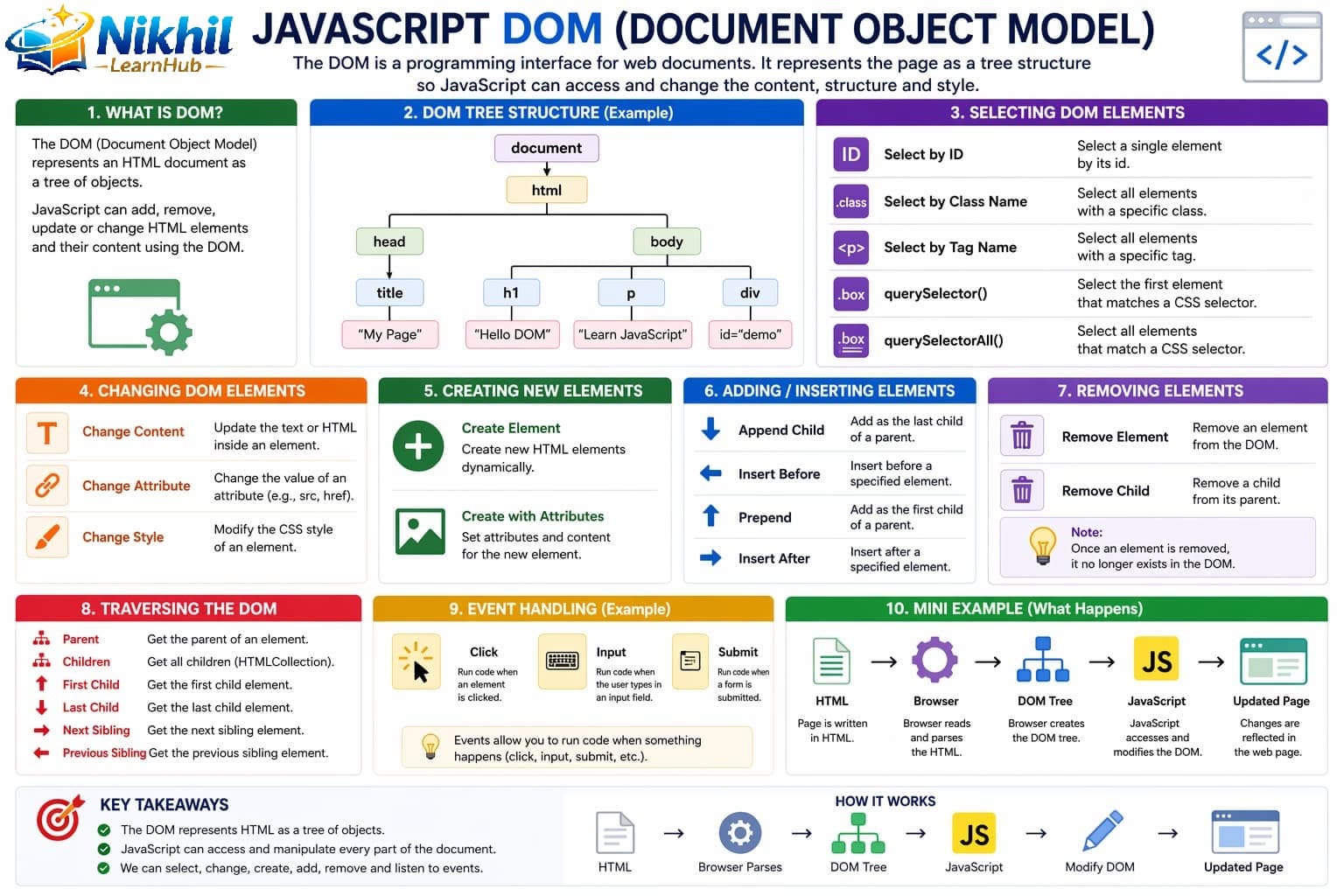
1. What is the DOM?
The DOM represents your HTML as objects.
<h2 id="title">Hello World</h2>

document.getElementById("title").innerText = "Hello World!";
2. Selecting Elements
You must first select elements before modifying them.
// By ID
let el = document.getElementById("title");

// By class
let items = document.getElementsByClassName("item");

// By tag
let tags = document.getElementsByTagName("p");

// Modern (recommended)
let el2 = document.querySelector("#title");
let all = document.querySelectorAll(".item");
3. Changing Content
let el = document.getElementById("title");

el.innerText = "New Text";
el.innerHTML = "<b>Bold Text</b>";
4. Changing Styles
el.style.color = "red";
el.style.fontSize = "30px";
5. Handling Events
JavaScript responds to user actions like clicks.
<button onclick="changeText()">Click Me</button>
<p id="text">Hello</p>

function changeText() {
    document.getElementById("text").innerText = "Changed!";
}
Better approach (separate JS):
document.getElementById("btn").addEventListener("click", function() {
    console.log("Button clicked");
});
6. Creating & Adding Elements
let newEl = document.createElement("p");
newEl.innerText = "New Paragraph";

document.body.appendChild(newEl);
7. Removing Elements
let el = document.getElementById("title");
el.remove();
8. DOM Tree Structure
HTML elements are arranged in a parent-child tree structure. Understanding this helps with selection, traversal, and updates.
9. Traversing the DOM
let parent = el.parentElement;
let child = el.children;
let first = el.firstElementChild;
let last = el.lastElementChild;
10. Real-Life Example
<input type="text" id="name">
<button onclick="showName()">Submit</button>
<p id="result"></p>

function showName() {
    let name = document.getElementById("name").value;
    document.getElementById("result").innerText = "Hello " + name;
}
11. Important Tips
- Use
querySelectorfor flexibility. - Avoid inline
onclickin real projects. - Keep HTML, CSS, and JS separate.
- Use event listeners for cleaner code.
12. When to Use DOM
Use DOM when you want to update content dynamically, handle user input, create interactive pages, and build forms/buttons/UI.
Simple JavaScript DOM Examples
Small, practical examples for tutorials and practice pages.
1. Change Text on Button Click
<p id="demoText">Hello</p>
<button id="demoTextBtn">Click Me</button>

<script>
document.getElementById("demoTextBtn").addEventListener("click", function () {
  document.getElementById("demoText").innerText = "Welcome!";
});
</script>
Hello
2. Show Input Value
<input type="text" id="demoName" placeholder="Enter name">
<button id="demoNameBtn">Submit</button>
<p id="demoNameResult"></p>

<script>
document.getElementById("demoNameBtn").addEventListener("click", function () {
  const name = document.getElementById("demoName").value;
  document.getElementById("demoNameResult").innerText = "Hello " + name;
});
</script>3. Change Background Color
<button id="demoColorBtn">Change Color</button>
<div id="demoColorBox">Color Box</div>

<script>
document.getElementById("demoColorBtn").addEventListener("click", function () {
  document.getElementById("demoColorBox").style.backgroundColor = "lightblue";
});
</script>4. Hide / Show Element
<p id="demoPara">This is a paragraph</p>
<button id="demoToggleBtn">Hide/Show</button>

<script>
document.getElementById("demoToggleBtn").addEventListener("click", function () {
  const p = document.getElementById("demoPara");
  p.style.display = p.style.display === "none" ? "block" : "none";
});
</script>
This is a paragraph
5. Add New Element
<button id="demoAddBtn">Add Item</button>
<ul id="demoList"></ul>

<script>
document.getElementById("demoAddBtn").addEventListener("click", function () {
  const li = document.createElement("li");
  li.innerText = "New Item";
  document.getElementById("demoList").appendChild(li);
});
</script>6. Remove Element
<p id="demoRemoveMe">Remove this text</p>
<button id="demoRemoveBtn">Remove</button>

<script>
document.getElementById("demoRemoveBtn").addEventListener("click", function () {
  const el = document.getElementById("demoRemoveMe");
  if (el) el.remove();
});
</script>
Remove this text
7. Event Listener Example
<button id="demoEventBtn">Click Me</button>
<p id="demoEventMsg"></p>

<script>
document.getElementById("demoEventBtn").addEventListener("click", function () {
  document.getElementById("demoEventMsg").innerText = "Button clicked!";
});
</script>8. Simple Form Validation
<input type="text" id="demoUsername" placeholder="Enter username">
<button id="demoValidateBtn">Submit</button>
<p id="demoMsg"></p>

<script>
document.getElementById("demoValidateBtn").addEventListener("click", function () {
  const user = document.getElementById("demoUsername").value.trim();
  document.getElementById("demoMsg").innerText = user === "" ? "Field cannot be empty" : "Success!";
});
</script>Related Topics
Continue with Events and DOM Advanced, and revisit Objects to better understand node and event data structures.
10 DOM Basics Interview Q&A
querySelectorAll().element.addEventListener("click", fn).classList.add/remove/toggle.document.createElement().element.remove() or parent removeChild.